When developing an app on a local port, the ghost of previously developed app appears in the browser
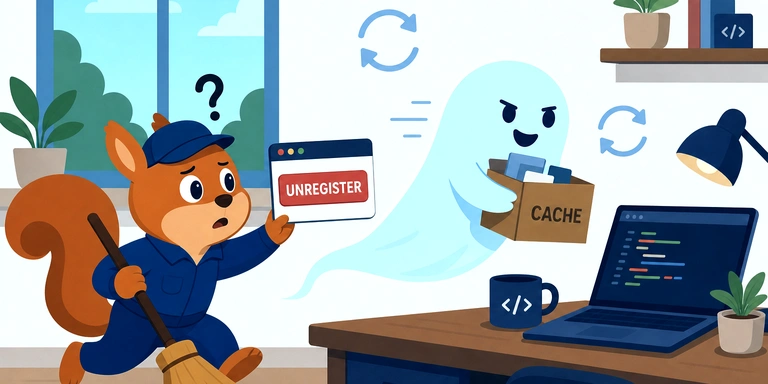
I usually develop apps with SvelteKit. When I opened http://localhost:5173/ and kept reloading, the remains of another app that should not be running now were sometimes shown and sometimes not, and development became difficult.
The cause is usually that a Service Worker (SW below) registered in an old project has ended up registered in the origin scope localhost:5173.
Why It Happens
A SW is registered tied to an origin (scheme + host + port). On a development machine, multiple apps often reuse the same port, such as localhost:5173. So once you register a SW in another app, the next time you open a different app on the same port, "the previous app's SW" intercepts the requests and returns its cache.
A SW is not uninstalled by a normal reload, and in some browsers it remains even after a super reload (Cmd + Shift + R). That is why it becomes "a ghost that does not disappear even when you reload".
How to Check
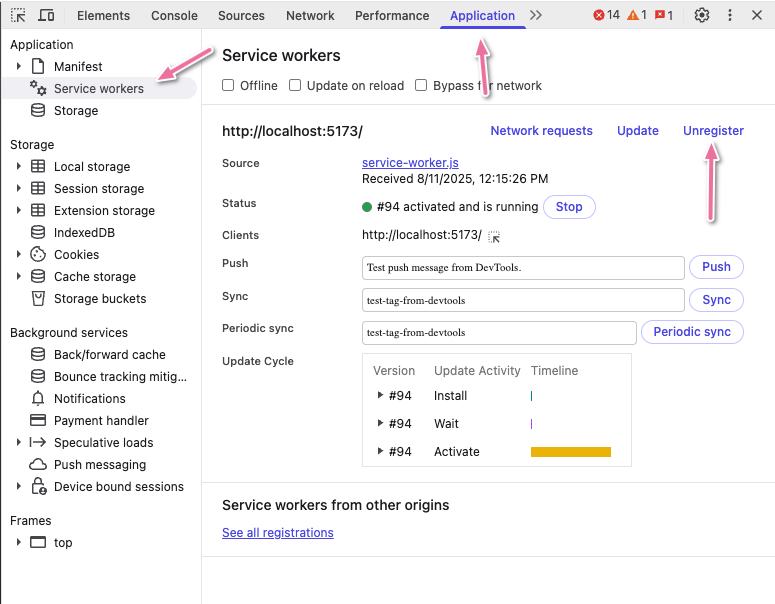
Look at the browser's developer tools → Application tab → Service Workers, and you get a list of the SWs running on the origin currently displayed. If SWs you don't recognize are listed here, this is the cause.
While you are there, take a look at Application → Storage → Cache Storage too, and you can see the caches the SW has accumulated.
How to Fix
Press Unregister for that SW on the Service Workers page, and the ghost disappears on the spot. Deleting the entries left in Cache Storage as well makes it more certain.
Auto-Disable the SW in SvelteKit Dev Mode
Unregistering by hand every time is a hassle, so it is easier to just not register the SW in development mode. If you go further and "automatically remove any SW that was registered in the past and is still there", the trouble when switching over from another app goes away too.
Create src/lib/registerServiceWorker.ts and write it like this.
export function registerServiceWorker() {
  if (!('serviceWorker' in navigator)) return;

  // Don't register the SW in dev mode.
  // SWs persist at the origin scope (e.g. localhost:5173), so the cache
  // gets polluted whenever you develop a different Vite app on the same port.
  if (import.meta.env.DEV) {
    // Strip any SW left over from a previous dev session
    navigator.serviceWorker.getRegistrations().then((regs) => {
      regs.forEach((reg) => reg.unregister());
    });
    if (typeof caches !== 'undefined') {
      caches.keys().then((keys) => {
        keys.forEach((key) => caches.delete(key));
      });
    }
    return;
  }

  window.addEventListener('load', () => {
    navigator.serviceWorker
      .register('/service-worker.js')
      .catch((err) => console.error('SW registration failed:', err));
  });
}
The calling side (inside onMount in +layout.svelte or +page.svelte) is as follows.
<script lang="ts">
  import { onMount } from 'svelte';
  import { registerServiceWorker } from '$lib/registerServiceWorker';

  onMount(() => {
    registerServiceWorker();
  });
</script>
Key Points
- Branch on
import.meta.env.DEV: An environment variable provided by Vite (the build tool SvelteKit uses internally). It is true only duringnpm run dev. - In dev, go as far as unregistering and deleting the caches: If you only
return, the SW stays in place when you come back to dev after it was registered by a prod build. If you put in code that removes it explicitly, things are clean as soon as you switch apps.
When You Decide to Drop PWA Support
If you decide partway through that "I don't need PWA after all" and delete the SW file itself, the SW keeps remaining in the browsers of users where it was registered in the past, and the old cache keeps being hit forever.
In that case, the safe way is to keep the SW file itself and replace its contents with "a stub that only unregisters itself". A SW is checked for updates on every navigation, so the next time the user visits, the new stub version is activated, and the cache and registration are cleaned up automatically.
self.addEventListener('install', () => self.skipWaiting());

self.addEventListener('activate', (event) => {
  event.waitUntil(
    (async () => {
      const keys = await caches.keys();
      await Promise.all(keys.map((key) => caches.delete(key)));
      await self.registration.unregister();
      const clients = await self.clients.matchAll({
        includeUncontrolled: true,
        type: 'window',
      });
      clients.forEach((client) => client.navigate(client.url));
    })()
  );
});
Be sure to pass { includeUncontrolled: true, type: 'window' } to matchAll. With the default arguments it only picks up "tabs this SW controls", and it misses tabs that are still attached to the old SW.
We look forward to discussing your development needs.