Operating a 128x64 OLED LCD Display with Raspberry Pi
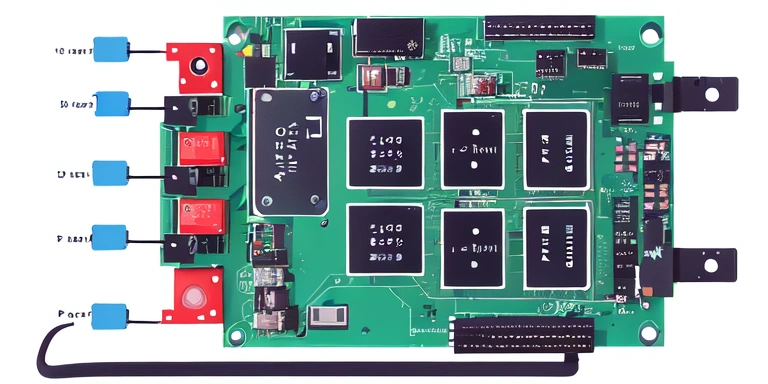

An impulse purchase from Amazon: a 128x64 OLED LCD display
http://www.amazon.co.jp/dp/B00XDY2SR8
Connecting it to a Raspberry PI via I2C and getting it to work.
SSD1306?
1. Enabling I2C on the Raspberry PI
$ sudo raspi-config
→ Advanced Options → I2C → Yes
After setting, restart the device
There are various methods depending on the model and the time period, so choose the one that suits your setup.
Reference: `Enabling I2C on recent Raspberry Pis - Rabbit Note <http://rabbit-note.com/2015/02/08/raspberry-pi-i2c-activation/>`_
Also, install i2c-tools
$ sudo apt-get install i2c-tools
2. Connect and Verify the LCD Display
2-1. Run i2cdetect with the display not connected
$ sudo i2cdetect -y 1
     0  1  2  3  4  5  6  7  8  9  a  b  c  d  e  f
00:          -- -- -- -- -- -- -- -- -- -- -- -- --
10: -- -- -- -- -- -- -- -- -- -- -- UU -- -- -- --
20: -- -- -- -- -- -- -- -- -- -- -- -- -- -- -- --
30: -- -- -- -- -- -- -- -- -- -- -- UU -- -- -- --
40: -- -- -- -- -- -- -- -- -- -- -- -- -- -- -- --
50: -- -- -- -- -- -- -- -- -- -- -- -- -- -- -- --
60: -- -- -- -- -- -- -- -- -- -- -- -- -- -- -- --
70: -- -- -- -- -- -- -- --
2-2. Connect the display. There are various images showing which pins to use; for instance, refer to this:
Using I2C on the Raspberry Pi: Using a Temperature Sensor - Neko Punch!
http://d.hatena.ne.jp/penkoba/20131215/1387119945
2-3. Run i2cdetect after connecting the display
$ sudo i2cdetect -y 1
     0  1  2  3  4  5  6  7  8  9  a  b  c  d  e  f
00:          -- -- -- -- -- -- -- -- -- -- -- -- --
10: -- -- -- -- -- -- -- -- -- -- -- UU -- -- -- --
20: -- -- -- -- -- -- -- -- -- -- -- -- -- -- -- --
30: -- -- -- -- -- -- -- -- -- -- -- UU 3c -- -- --
40: -- -- -- -- -- -- -- -- -- -- -- -- -- -- -- --
50: -- -- -- -- -- -- -- -- -- -- -- -- -- -- -- --
60: -- -- -- -- -- -- -- -- -- -- -- -- -- -- -- --
70: -- -- -- -- -- -- -- --
It is recognized at 3c.
3. Install wiringPi
$ git clone git://git.drogon.net/wiringPi
$ ./build
Testing
$ gpio -v
$ gpio readall
4. Install u8glib
Build and use the commonly used Arduino library on the Raspberry Pi
Issue 171 - u8glib - Port U8glib to Raspberry Pi - Universal Graphics Library for 8 Bit Embedded Systems - Google Project Hosting
https://code.google.com/p/u8glib/issues/detail?id=171
Refer to the page above.
$ cd /tmp/
$ wget http://dl.bintray.com/olikraus/u8glib/u8glib_arduino_v1.16.zip
$ unzip u8glib_arduino_v1.16.zip
Get the patch posted on the site below (the same page as above)
https://code.google.com/p/u8glib/issues/detail?id=171
Get the #24 patch u8glib_1.16.RaspberryPi.patch.
Copy the URL and use wget on the Raspberry Pi, or download it on your PC and send it via sftp etc.
Save it as /tmp/u8glib_1.16.RaspberryPi.patch.
$ cd /tmp/U8glib/
$ patch -p1 < /tmp/u8glib_1.16.RaspberryPi.patch
$ make
$ sudo cp libU8glib.a /usr/lib
$ sudo cp U8glib.h /usr/include
$ sudo mkdir /usr/include/utility
$ sudo cp /tmp/U8glib/utility/u8g.h /usr/include/utility/
5. Run the Demo
$ cd /tmp/U8glib/examples/U8gLogo
$ vim Makefile
# INCLUDE=/opt/U8glib/include
INCLUDE=/tmp/U8glib/include
↑ Rewrite the INCLUDE line
$ make
$ ./logo
6. Using it with Python...
Code writing in progress
Related posts
 Turning USB Devices On and Off with a Relay Using Raspberry Pi
 Creating a Self-Powered USB Hub for Raspberry Pi Using USB Port Power
 Connecting to a Raspberry Pi Using Mac's "Internet Sharing" (For External Connections)
 VNC on Raspberry Pi OS Bookworm (Debian 12) Cannot Connect from Mac, and Cursor Behavior Rotates when Screen is Rotated
We look forward to discussing your development needs.